
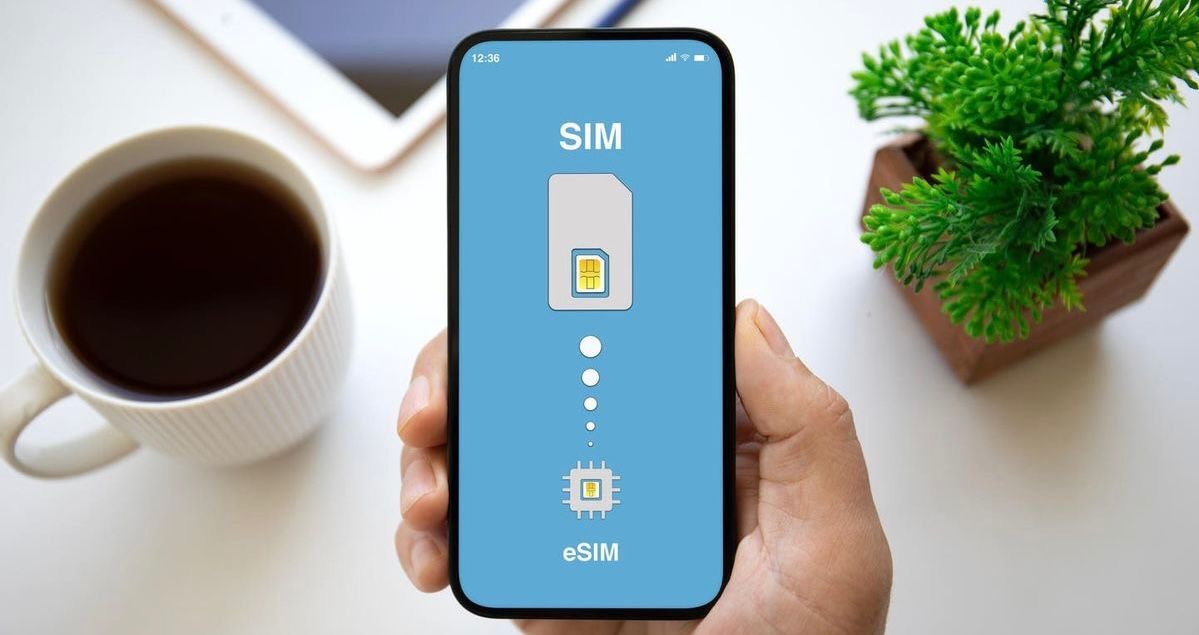
Buying an eSIM takes only a few minutes, but first you need to know whether your phone can use one. The answer depends on more than the model name: hardware, country of purchase, carrier restrictions, and lock status can all matter.
This guide shows the most reliable checks you can perform directly on your phone before purchasing a travel eSIM.
Three Things Must Be True Before You Use an eSIM
A phone is ready for a travel eSIM when all three conditions are met:
- The exact device variant supports eSIM.
- The eSIM feature is enabled in its software and region.
- The phone is unlocked for plans from another provider.
A product family may include several regional versions, so a general model list is only a starting point. Checking the settings and device identifiers is more reliable.
Use the Phone Settings as Your First Check
Open the area where your phone manages mobile networks and SIMs. Look for an option such as:
- Add eSIM;
- Add Cellular Plan;
- Add Mobile Plan;
- Download a SIM; or
- Add carrier.
If one of these options appears, the phone likely has eSIM capability. Do not complete the setup with an unrelated QR code just to test it.
If the option is missing, continue with the checks below. Software, region, or carrier settings can sometimes hide it even on supported hardware.
How to Check eSIM Support on an iPhone
Menu names vary slightly by language and iOS version, but the usual path is:
- Open Settings.
- Tap Cellular, Mobile Data, or Mobile Service.
- Look for Add eSIM or Add Cellular Plan.
You can also open Settings → General → About and look for an EID. The EID is an identifier associated with the phone's embedded SIM hardware.
While you are on the About screen, find Carrier Lock or Network Provider Lock. Wording that indicates no SIM restrictions generally means the phone is unlocked. If it shows a restriction, contact the carrier that supplied the phone.
How to Check eSIM Support on a Samsung Phone
On many Samsung Galaxy devices:
- Open Settings.
- Tap Connections.
- Open SIM manager.
- Look for Add eSIM.
The same Galaxy model name may be sold in variants with different eSIM support. If the option is not present, check the exact model number under Settings → About phone and confirm it with the manufacturer or carrier.
How to Check eSIM Support on a Google Pixel or Other Android Phone
On many Google Pixel phones, the usual route is:
- Open Settings.
- Tap Network & internet.
- Tap SIMs or the plus symbol beside it.
- Look for an option to Download a SIM or add an eSIM.
Other Android brands may place the option under Mobile Network, SIM Manager, SIMs & Mobile Network, or a similar menu. Use the Settings search field and search for “eSIM,” “SIM,” or “mobile plan.”
Look for an EID or eSIM IMEI
An EID is strong evidence that the device contains eSIM hardware. You may find it in the About or Status section of the settings, on the original packaging, or by viewing the device information screen provided by the manufacturer.
Some phones also display a second IMEI associated with the digital SIM. A dual-IMEI listing alone is not always enough to confirm how the device is configured, so use it together with the Add eSIM option and the exact model details.
Confirm the Exact Model and Country Variant
Do not rely only on a name such as “Galaxy,” “Pixel,” or “iPhone.” Find the full model number in the About screen and check that exact variant.
Regional differences matter. A phone purchased in one country may have different SIM hardware or software capabilities from a phone with the same marketing name sold elsewhere. Enterprise devices and carrier-specific editions can also differ.
Use the Yatelo compatibility checker, then confirm the result against the manufacturer's documentation or your carrier if anything is unclear.
Make Sure the Phone Is Unlocked
eSIM support and carrier unlocking are separate. A phone may show “Add eSIM” and still reject a travel plan because it is locked to the carrier that sold it.
Possible ways to check include:
- reviewing the Carrier Lock or Network Provider Lock field on an iPhone;
- checking the account or device-unlock app supplied by an Android carrier;
- asking the original carrier to confirm the lock status; or
- testing another provider's SIM only when you already have permission and a suitable SIM.
For step-by-step checks on iPhone, Samsung, and Pixel, plus what to do if your phone is locked, read our guide on how to check if a phone is unlocked.
If the device is still locked, ask the carrier about its eligibility and unlocking process before buying an eSIM.
What to Try if the Add eSIM Option Is Missing
A missing menu does not always mean the hardware is incompatible. Before concluding that the phone cannot use eSIM:
- Install available operating-system and carrier-settings updates.
- Restart the phone.
- Connect to Wi-Fi and check the SIM settings again.
- Confirm the exact model number and region.
- Ask the carrier whether eSIM is enabled for that device.
Do not factory-reset the phone solely to reveal the option. If the manufacturer and carrier say the exact variant does not support eSIM, a software reset will not add the required hardware.
Check These Details Before Buying a Travel eSIM
Use this final checklist:
- The phone shows an eSIM setup option or EID.
- The exact regional model supports eSIM.
- The device is unlocked.
- The operating system is up to date.
- The plan covers the destination and trip dates.
- You have stable internet for installation.
- You understand when the plan activates.
Once confirmed, install the eSIM before departure and keep the setup instructions available offline. Avoid deleting the profile after installation unless support tells you to do so.
What if Your Phone Does Not Support eSIM?
You can still use a physical local SIM, your carrier's roaming plan, a portable Wi-Fi device, or trusted Wi-Fi where available. Compare the cost and convenience of each option for the trip, using our guides to eSIM vs physical SIM vs roaming and eSIM vs pocket WiFi.
If you plan to replace your phone, eSIM support is a useful feature to include in the decision, especially if you travel often or manage more than one mobile line.
Choose a Plan After Compatibility Is Confirmed
Checking compatibility first prevents one of the most common setup problems. Once you know the phone supports eSIM and is unlocked, explore Yatelo travel eSIM plans and choose the destination, data amount, and validity period that fit your trip.